
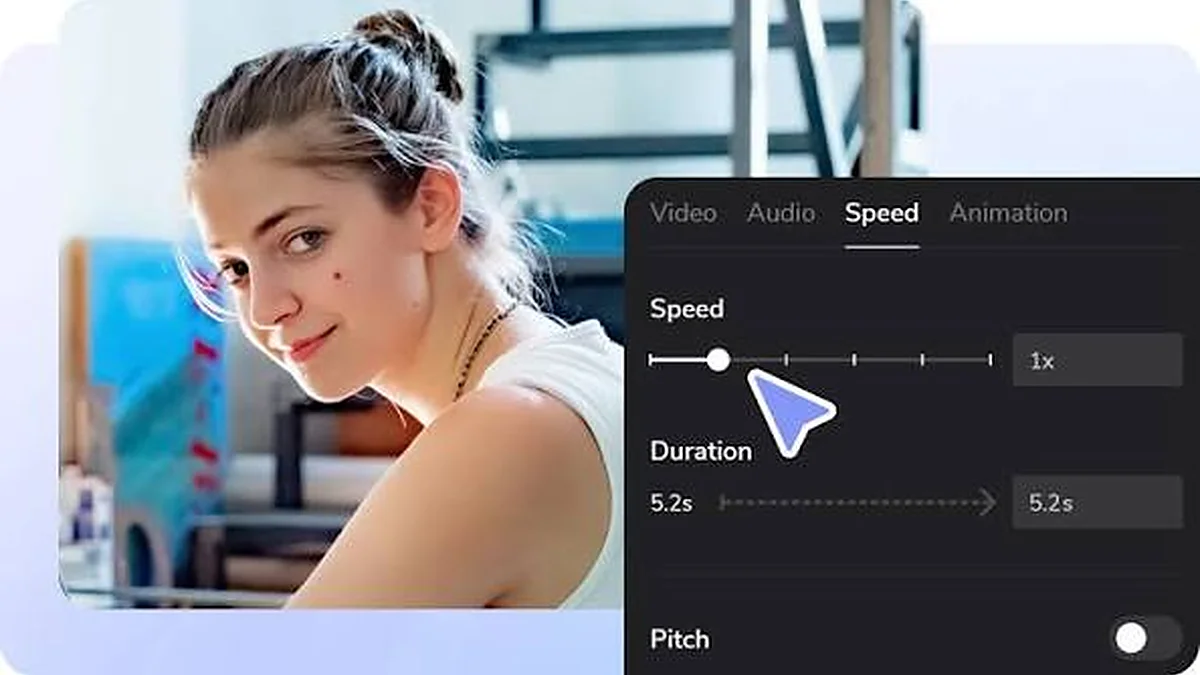
Load a video from your device, pick a preset or fine-tune the speed, and watch it slower or faster in seconds.
Changing the speed of a video used to mean opening a video editor, importing the clip, stretching it on a timeline and exporting a new file. For most people that is far more work than they need. Usually you just want to watch a lecture a little faster, or slow down a tricky part of a tutorial so you can follow it. A browser-based Video Speed Controller does exactly that, straight from a web page, in a few seconds.
This guide explains what changing video speed online really means, how to do it step by step, which speed to choose for different situations, and what to do if something does not work as expected.
What changing video speed online means
When people search for a way to change video speed online, they usually mean one of two things. Knowing the difference saves a lot of confusion.
Changing playback speed while you watch
This is what the Video Speed Controller on this site does. You open a video file from your own device, and the page plays it at whatever speed you choose. The original file is not touched. When you close the page, the file on your computer or phone is exactly as it was.
- The speed change is instant.
- You can change speed as often as you like while the video plays.
- Nothing is uploaded, converted or downloaded.
Creating a new speed-adjusted video file
The second meaning is producing a new file that is permanently faster or slower. That requires re-encoding every frame and the audio track, which takes processing time and memory. You need this only if you want to share or post the changed clip. A video editor or converter is the right tool for that job.
Rule of thumb: if you just want to watch differently, change playback speed. If you need to send someone a faster or slower clip, export a new file.
How the browser changes playback speed
Every modern browser has a built-in video player engine. The HTML5 video element includes a property called playbackRate. Setting it to 2 makes the video play twice as fast; setting it to 0.5 plays it at half speed. The Video Speed Controller gives you a clear, precise interface for that built-in feature.
Why no upload is needed
When you choose a file, the browser creates a temporary local address for it, called an object URL. That address exists only inside your open tab and points to the file on your device. The player reads the video directly from your storage. No server ever receives the file, which is why the tool can say: your video is processed in this browser, and the video file is not uploaded to our server.
Why it works offline
Because the video is read from your own device, an internet connection is only needed to load the page itself. Once the page is open, you can watch local files even if the connection drops.
Step-by-step: change the speed of a video
The whole process takes less than a minute. Here it is in detail.
Step 1: Open the tool
Go to the Video Speed Controller at the top of the homepage. You will see a large drop area with a Choose a video button and, beside it, the speed panel with the dial and preset buttons.
Step 2: Choose or drop your video
You have two ways to load a file:
- Click Choose a video and pick a file in your device's file browser.
- Drag a video file from your desktop or file manager and drop it onto the tray.
The tool plays one file at a time. As soon as the browser reads the file, the player appears, showing the duration and the file size. If the file cannot be played, you will see a clear message explaining why instead of a blank screen.
Step 3: Pick a speed preset
The preset grid covers the speeds people use most:
- 0.25×, 0.5×, 0.75× – slower than normal, for detail and learning.
- 1× – normal speed, marked with a dashed outline and the word "normal".
- 1.25×, 1.5×, 1.75×, 2× – faster, for lectures and long recordings.
- 2.5×, 3×, 4× – very fast, for scanning to find a moment.
The selected preset is filled in and has a small pointer above it, so it is easy to see even without relying on colour. The dial above the presets lights up one segment per preset and says whether you are slower than normal, at normal speed or faster than normal.
Step 4: Fine-tune the exact speed
Sometimes 1.5× feels slightly too fast and 1.25× slightly too slow. For anything in between:
- Drag the fine speed slider, which moves in steps of 0.05.
- Press the − and + buttons to move by 0.10.
- Type an exact value such as 1.35 into the Exact box and press Enter.
Step 5: Play, pause and adjust as you go
Press the play button and watch. You can change the speed at any time while the video plays or while it is paused. The readout always shows the speed the video is actually using, so there is never any doubt.
Step 6: Return to normal
Click Reset to 1× or press the R key to go back to the original speed instantly.
Choosing the right speed
There is no single perfect speed. The best choice depends on the content and on what you want to get out of it.
| Speed | 10-minute video takes | Good for |
|---|---|---|
| 0.25× | 40:00 | Movement detail, technique review |
| 0.5× | 20:00 | Learning steps, music practice |
| 0.75× | 13:20 | Fast speakers, accents, language study |
| 1× | 10:00 | First viewing, music, drama |
| 1.25× | 8:00 | Comfortable lecture review |
| 1.5× | 6:40 | Talks, meetings, familiar topics |
| 2× | 5:00 | Recorded calls, revision |
| 4× | 2:30 | Finding a specific moment |
When to slow down
Slow playback gives your eyes and ears more time. It helps when you are learning a physical skill, following a detailed software tutorial, practising an instrument or trying to understand a speaker with a strong accent. Read our full guide on how to slow down a video.
When to speed up
Faster playback saves time on content where the information is spread thinly: long meetings, slow lecturers, repetitive explanations or material you have seen before. See how to speed up a video to 1.5x or 2x.
When to stay at 1×
Music, comedy, films and anything where timing matters are usually best at normal speed. The same goes for a first viewing of completely new, complex material.
Keyboard shortcuts for faster control
If you use the tool often, the keyboard is quicker than the mouse.
- S – slower by 0.10×
- D – faster by 0.10×
- R – reset to 1×
- K or Space – play or pause
- J and L – back or forward 5 seconds
- M – mute or unmute
- F – fullscreen
Shortcuts are ignored while you type in a text field, and you can switch them off completely in the tool panel. Full details are in the keyboard shortcuts guide.
Useful settings in the tool
Keep audio pitch natural
When you speed up sound, voices naturally become higher; when you slow it down, they become deeper. Browsers can correct this automatically. The Keep audio pitch natural option is ticked by default so speech sounds normal at any speed. Untick it if you want to hear the raw effect.
Remember speed on this device
If you always watch at, say, 1.5×, tick Remember speed on this device. Only the speed number is saved in your browser. The video, its name and your viewing history are never stored. Press Clear saved preference to remove it.
Loop
The loop button repeats the video continuously. Combined with slow speed, it is useful for practising a short dance move, a guitar riff or a sentence in another language.
Which videos will play
The tool can play any video that your browser can decode. In practice:
- MP4 with H.264 video and AAC audio works in almost every current browser.
- WebM with VP8 or VP9 video works in Chrome, Edge and Firefox, and in recent Safari versions.
- HEVC (H.265), common on recent phones, works only in some browsers and on some hardware.
- AVI, WMV and FLV files usually need converting to MP4 first.
The compatibility section on the homepage asks your own browser which formats it supports. For background, read MP4, WebM and codecs: which videos play?
Troubleshooting common problems
The video will not open
The browser cannot decode the format. Convert the file to MP4 (H.264 + AAC) or try a different browser.
There is sound but no picture
This usually means the video codec, often HEVC, is not supported by your browser or device.
The speed does not seem to change
Look at the readout. It reflects the real playback rate. If it changes, the speed has changed; very static footage can make the difference hard to see.
Playback stutters at high speed
Large 4K files need a lot of processing power. Try a lower speed, close other tabs, or use a smaller version of the video. For more fixes, see fix a video that won't play in your browser.
Real-life examples of changing video speed
Seeing how other people use speed control can help you decide what suits you.
A student catching up on lectures
A university student has six recorded lectures to watch before a seminar. She loads each recording into the tool, starts at 1.25× and moves up to 1.5× once she is comfortable. When the lecturer introduces a new formula, she presses R to hear it at normal speed, pauses with K to copy it down, then clicks 1.5× again. She finishes the week's material in about two thirds of the time.
A guitarist learning a solo
A guitarist downloads a lesson video from his teacher. He slows the tricky passage to 0.5×, turns on Loop, and plays along until he can keep up. Each time he succeeds, he presses D to add 0.10. After a few sessions he plays the passage at 1×.
A team lead reviewing meeting recordings
A team lead receives a long recorded planning meeting. She watches at 2×, uses L to skip forward through small talk, and slows to 1× when decisions are discussed.
A parent reviewing a school sports clip
A parent films a child's swimming race on a phone. At home, they open the clip on the same phone, slow it to 0.25× and pause at the turn to show the child how their push-off looks.
How speed control compares with other methods
Built-in player menus
Many websites have a speed menu in their own player. It works only on that website and often offers fewer steps, typically 0.25 apart.
Desktop media players
Desktop players can change speed too, but you must install them, and controls are often hidden in menus.
Video editors
Editors can create a permanently sped-up or slowed file, but they are slow to use if you only want to watch.
This online tool
- No installation and no account.
- Eleven presets plus precise values in 0.05 steps.
- Clear readout of the current speed at all times.
- Loop, 5-second jumps and pitch control in one place.
Accessibility features you can rely on
Clear visual feedback
The current speed appears as a large number, in the dial, on the selected preset and as a small badge on the video. Slower, normal and faster are shown with words and arrows as well as colour.
Keyboard and screen-reader support
Every control is a real button, slider or field with a label. Speed changes and errors are announced through status messages. Shortcuts can be turned off if they clash with assistive tools.
Touch-friendly layout
On phones, buttons are large enough to tap and the controls stack in a logical order: player, speed panel, then options.
Tips for getting the best experience
- Use the latest version of your browser for the widest format support.
- Copy videos from slow external drives to your device before playing.
- Use 1080p rather than 4K files on older laptops and phones.
- Close other heavy tabs when watching at high speeds.
- Keep Keep audio pitch natural on for speech and turn it off only for music experiments.
- Use headphones in noisy places, especially at faster speeds.
Privacy in more detail
What happens to your file
When you choose a video, your browser gives the page permission to read that one file. The page creates a temporary local link and the player reads the video through it. When you press Clear player, choose another file or close the tab, the link is released.
What is never sent
The file's contents, name, size and metadata are not sent to any server or analytics service. You can confirm this yourself in your browser's developer tools: the network panel shows no request carrying your video.
What may be stored
Only if you tick Remember speed on this device, your browser stores the chosen speed number. Nothing else.
Key takeaways
- Changing playback speed online is instant and does not modify your file.
- Presets cover 0.25× to 4×; the slider and Exact box handle values in between.
- S, D and R give quick keyboard control.
- Your video is processed in this browser and never uploaded.
Frequently asked questions
Is changing video speed online free?
Yes. The Video Speed Controller is free, has no sign-in and does not lock any feature.
Does it work on phones?
Yes, in current mobile browsers. The controls stack vertically on small screens and the buttons are large enough to tap comfortably.
Can I download the faster or slower video?
No. The tool changes playback only. To save a new file, use a video editor or converter.
Does it work on videos from other websites?
No. It controls videos you open from your own device. Controlling videos on other websites requires a browser extension; see online speed tool vs browser extension.
Summary
Changing video speed online is quick when the tool does only what you need. Choose a file, pick a preset, fine-tune if necessary and press play. Your file stays private on your device, nothing needs installing, and you can return to normal speed with a single click.
Try it with your own video – nothing is uploaded.
Open the Video Speed Controller