
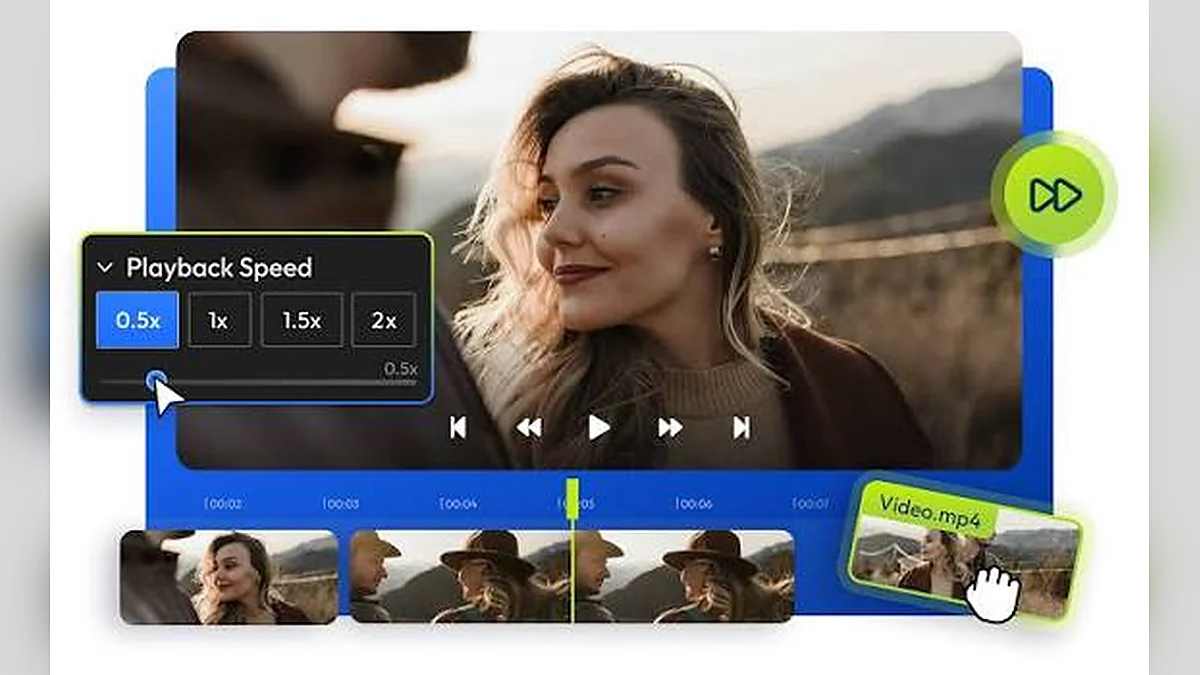
Slow motion for review does not need an editor. Here is how to watch any local clip at 0.75×, 0.5× or 0.25×.
Some moments in a video happen too quickly to follow: a fast chord change, a footwork pattern, a quick keyboard shortcut in a software tutorial or a native speaker who seems to swallow half the words. Slowing the video down solves the problem, and you do not need editing software to do it. This guide shows you how to slow down any video from your device to 0.75×, 0.5× or 0.25×, and how to get the most out of slow playback.
Why slowing down a video helps
Slow playback stretches time. Every second of the original video takes longer to watch, which gives your brain more time to process what it sees and hears.
Better understanding of fast movement
Sports, dance, martial arts and crafts all involve movements that last a fraction of a second. At half speed or quarter speed, positions and timing become visible.
Easier listening
Fast speech is hard to follow, especially in a second language or with an unfamiliar accent. At 0.75× the words separate more clearly while the voice still sounds natural, because browsers keep the pitch steady by default.
Following step-by-step instructions
Cooking videos, makeup tutorials, coding walkthroughs and repair guides often move on before you have finished a step. Slowing them down means fewer pauses and rewinds.
Slowing down vs editing a video
There are two very different ways to slow down a video.
Slow playback (what this tool does)
- Changes only how the video plays in the page.
- Works instantly, with no processing time.
- Leaves the original file untouched.
- Lets you switch between slow and normal speed whenever you like.
Slow-motion editing
- Creates a new video file at a fixed slower speed.
- Requires a video editor and export time.
- Useful only when you need to share or publish the slowed clip.
For watching, studying and reviewing, slow playback is almost always enough.
How to slow down a video step by step
Step 1: Load the video
Open the Video Speed Controller. Click Choose a video or drag a file onto the drop area. MP4 and WebM files play in almost every modern browser.
Step 2: Choose a slow preset
Click one of the slow presets:
- 0.75× – slightly slower, natural to listen to.
- 0.5× – half speed, good for learning steps.
- 0.25× – quarter speed, for detailed movement review.
The dial shows "Slower than normal" with a downward arrow so you always know you are below normal speed.
Step 3: Fine-tune if needed
If 0.75× is still too fast but 0.5× feels too slow, try 0.6× or 0.65×. Drag the fine slider, use the − button, or type the value in the Exact box. You can also press S to reduce speed by 0.10 at a time.
Step 4: Replay difficult sections
- Press J or the back button to jump back 5 seconds.
- Turn on Loop to repeat a short clip continuously.
- Pause with K to study a single frame.
Step 5: Go back to normal
Click Reset to 1× or press R when you want to watch at the original speed again.
Choosing the best slow speed
| Speed | 4-minute clip takes | Feels like | Best for |
|---|---|---|---|
| 0.75× | 5:20 | Relaxed | Speech, accents, tutorials |
| 0.6× | 6:40 | Clearly slow | Software steps, recipes |
| 0.5× | 8:00 | Half speed | Dance, music, technique |
| 0.25× | 16:00 | Very slow | Frame-level movement detail |
Start with 0.75×
For anything involving speech, begin at 0.75×. It is slow enough to catch more words but natural enough to listen to for a long time.
Use 0.5× for learning a skill
Half speed is the classic practice speed for music and movement. You can follow along in real time with the slowed video.
Save 0.25× for short moments
Quarter speed is very slow. Use it for a few seconds of key action rather than for whole videos.
What happens to sound when you slow down
Pitch correction
Without correction, slowing audio makes it deeper, like an old tape played too slowly. Modern browsers apply time-stretching so the pitch stays the same. In the tool this is the Keep audio pitch natural option, which is on by default.
When to turn pitch correction off
Musicians sometimes prefer to hear the uncorrected sound, for example when comparing a slowed recording to an instrument. Untick the option to hear the raw pitch change. Learn more in why pitch changes when video speed changes.
Audio at very low speeds
At extreme speeds, time-stretched speech can sound smeared or robotic. Some browsers mute audio outside a certain range. The tool keeps to 0.25× and above so sound remains available.
Getting smooth slow motion
Slow playback cannot create frames that were never recorded. How smooth slowed video looks depends on the original recording.
Frame rate matters
- 24–30 fps: fine at 0.75× and 0.5×, but movement can look stepped at 0.25×.
- 60 fps: smooth at half speed and acceptable at quarter speed.
- 120 fps or higher: very smooth when slowed, but files are larger.
Tips for recording videos you plan to slow down
- Use your phone's 60 fps or slow-motion setting if available.
- Record in good light to reduce motion blur in each frame.
- Keep the camera steady, ideally on a tripod.
- Frame the important movement clearly, from the side or front.
Practical uses for slow playback
Learning music
Slow a performance to 0.5× and play along. Increase speed by 0.10 with D each time you can keep up, until you reach 1×.
Studying sport technique
Review your own swing, serve or stride at 0.25× and pause on key positions. See slow motion review for sports and technique.
Language practice
Listen at 0.75×, then repeat sentences aloud. Our slow playback for language learning guide has a full routine.
Following tutorials
Slow coding, design or cooking videos to 0.75× so you can keep up without constant pausing.
Common problems and fixes
The video looks jerky when slowed
This is usually the original frame rate. Use a higher frame-rate recording if possible, or choose 0.5× instead of 0.25×.
There is no sound at slow speed
Check that the player is not muted and the volume slider is up. If the audio codec is unsupported, the video will play without sound at any speed.
The file will not open
Your browser may not support the format. Convert to MP4 (H.264 + AAC). See MP4, WebM and codecs.
Slow playback for different kinds of video
Software and coding tutorials
Tutorial presenters often click through menus faster than you can follow. At 0.75× you can see where they click and what they type. Pause with K whenever you need to copy a command, and use J to go back a few seconds if a menu disappears too quickly.
Cooking and craft videos
Quick hand movements, such as folding dough or tying a knot, are much clearer at 0.5×. Loop the step until you understand it, then try it yourself with the video paused.
Makeup and hair tutorials
Blending, brushing and braiding techniques are easier to copy at 0.5×. Pause at key positions to check the angle of the brush or the direction of a braid.
Lectures with fast speakers
Some lecturers speak very quickly. At 0.85× or 0.9× you hear every word without the lecture feeling slow. Type 0.85 in the Exact box for this.
Interviews and recordings with accents
Unfamiliar accents become clearer at 0.75×. Turn on subtitles too if the video has them.
Building a practice routine with slow playback
The slow-to-normal ladder
- Start at 0.5× and practise until you can follow comfortably.
- Increase to 0.6×, then 0.7×, using D or the Exact box.
- Continue in 0.10 steps until you reach 1×.
- If you struggle at a step, go back down one step.
Short, focused sessions
Practise one short section at a time. Ten minutes of focused, looped practice is often more useful than an hour of passive watching.
Record yourself
If you are learning a movement or instrument, record your own attempt and compare it at the same slow speed with the original video.
Slow playback and accessibility
More time to process information
Some viewers, including people with certain learning differences or processing difficulties, benefit from slower speech and movement.
Easier reading of on-screen text
Videos with text overlays or subtitles can move too quickly. Slowing to 0.75× gives more time to read.
Clear status information
The tool always shows the current speed in words, so you know you are watching at reduced speed.
Slow playback and memory
Slowing a video does not use more memory or storage. The browser reads the same file at a slower pace. Even long videos at 0.25× do not create any extra files on your device.
Comparing slow playback with frame-by-frame stepping
Slow playback
Slow playback shows motion continuously at a reduced speed. It is good for understanding flow and timing.
Pausing on frames
Pausing shows a single moment. In the tool, pause with K and use small seeks on the timeline to move around a moment. This is useful for checking a position, such as where a foot lands.
Using both
Watch first at 0.5× to understand the movement, then pause around the key moment to study positions.
A checklist before you start slow review
- Is the video file on your device and in a common format such as MP4 or WebM?
- Do you know which part of the video you want to study?
- Have you chosen a starting speed, such as 0.75× for speech or 0.5× for movement?
- Is Keep audio pitch natural set the way you want?
- Is Loop on if you want to repeat a short clip?
- Do you have paper or a notes app ready for timestamps and observations?
Slow playback on phones and tablets
Opening the file
On a phone, tap Choose a video and select a clip from your gallery or files app. Recent recordings appear first in most pickers.
Controls on small screens
The player stays full width. Play, time and mute sit on the first row, the seek bar on the second and the jump, loop and fullscreen buttons on the third. The speed panel follows directly below the player.
Holding the phone
For long practice sessions, prop the phone up or use a stand so your hands are free to copy the movement.
How slow playback fits into learning
Observation first
Slow playback is mainly an observation tool. It helps you notice details you would otherwise miss: the angle of a wrist, the order of steps, the exact words in a phrase.
Practice second
Observation alone does not build skill. After studying a moment at 0.5×, close the video or pause it and try the movement or phrase yourself. Then compare again.
Speed up as you improve
The aim of slow practice is to return to normal speed. Each time you can follow comfortably, raise the speed a little. Over days or weeks you reach 1× with much better accuracy than if you had practised only at full speed.
Key takeaways
- Start with 0.75× for speech and 0.5× for movement.
- Use 0.25× only for short, critical moments.
- Loop, pause and 5-second jumps make repetition easy.
- Higher frame-rate recordings look smoother when slowed.
- Your original file never changes.
Frequently asked questions
Can I slow down a video without losing quality?
Yes. Slow playback does not re-encode anything, so the picture is exactly as good as the original file.
Will my original video change?
No. The file on your device stays exactly the same.
How slow can I go?
The tool supports speeds down to 0.25×, which is one quarter of normal speed.
Can I save the slowed video?
Not with this tool. To save a slow-motion copy, use a video editor and export a new file.
Why does the speed badge on the video show 0.50×?
The badge in the corner of the player always shows the current speed, so you never forget the video is slowed down, even in fullscreen.
Can I slow down only part of a video?
You can change speed at any moment. Slow down when the difficult part starts and press R when it ends.
Does slow playback work offline?
Yes. Once the page has loaded, local files play without an internet connection.
Summary
Slowing down a video is the simplest way to understand fast movement, difficult speech or quick instructions. Load your file in the Video Speed Controller, choose 0.75×, 0.5× or 0.25×, use loop and 5-second jumps to repeat key moments, and reset to normal speed with one click when you are done.
Try it with your own video – nothing is uploaded.
Open the Video Speed Controller