
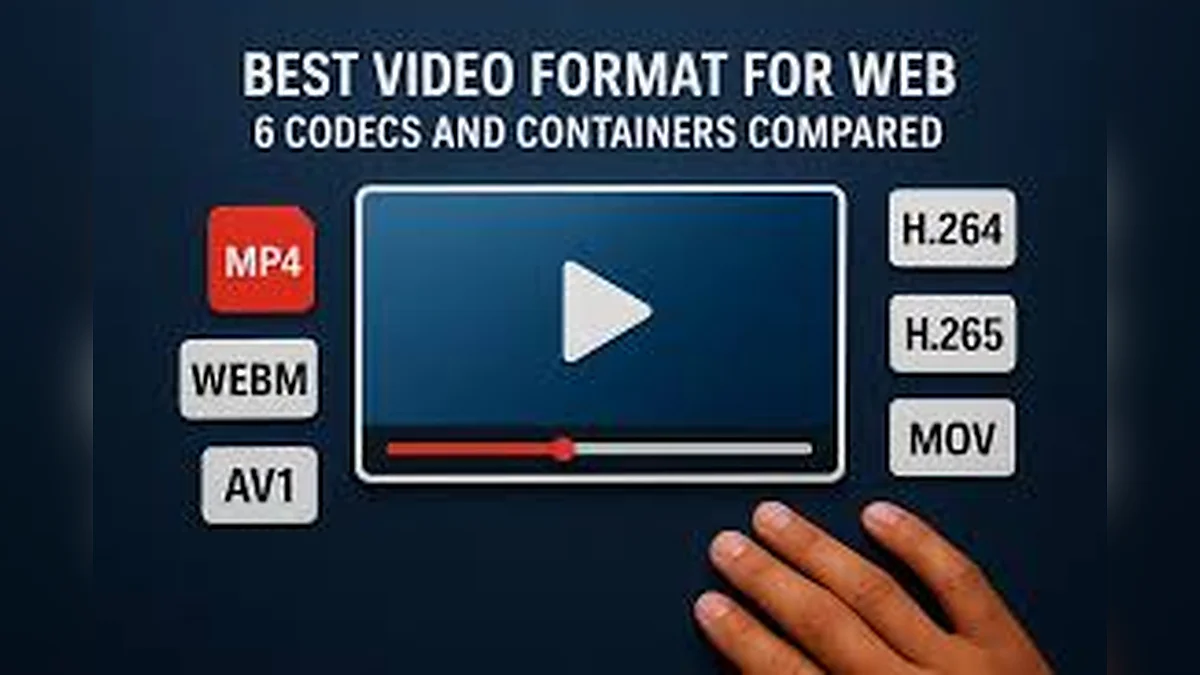
Container and codec are not the same thing. Here is what decides whether a file plays in your browser.
Why does one video play perfectly in your browser while another shows an error, even though both end in .mp4? The answer is codecs. This guide explains containers and codecs in plain language, lists which formats usually work in browsers, and tells you what to do with files that do not play.
Containers and codecs explained
The container is the box
A container is a file format that holds video, audio, subtitles and information such as duration. You see it as the file extension: .mp4, .webm, .mov, .mkv or .avi.
Codecs are what is inside the box
Video and audio are compressed so files are not enormous. The method of compression is the codec.
- Video codecs: H.264 (AVC), HEVC (H.265), VP8, VP9, AV1.
- Audio codecs: AAC, MP3, Opus, Vorbis, AC-3.
Browsers care about codecs
A browser can open a container but still fail to play it if it cannot decode the codec inside. That is why two .mp4 files can behave differently.
Common containers
| Container | Extension | Typical codecs |
|---|---|---|
| MPEG-4 | .mp4, .m4v | H.264, HEVC, AV1 + AAC |
| WebM | .webm | VP8, VP9, AV1 + Vorbis, Opus |
| QuickTime | .mov | H.264, HEVC, ProRes + AAC |
| Matroska | .mkv | Almost any codec |
| AVI | .avi | Older codecs such as Xvid, DivX |
| Ogg | .ogv | Theora + Vorbis |
Formats that usually work in browsers
MP4 with H.264 and AAC
This is the most widely supported combination. It plays in current versions of Chrome, Edge, Firefox and Safari on desktop and mobile. If you need a file to work everywhere, use this.
WebM with VP8 or VP9
WebM is an open format. It plays in Chrome, Edge and Firefox, and in recent Safari versions.
MP4 or WebM with AV1
AV1 is a newer, efficient codec. Recent browsers support it on many devices, but older devices may not.
Formats that may or may not work
MOV files
MOV files from iPhones often contain HEVC. They play in Safari and in other browsers only where the device can decode HEVC. MOV files with H.264 usually play more widely.
MKV files
Chromium-based browsers can sometimes play MKV files when the codecs inside are supported, but this is not guaranteed. Other browsers may refuse them.
HEVC (H.265) in any container
HEVC support depends on the browser, operating system and graphics hardware. It is the most common reason for "audio only" or "not supported" messages.
Formats that usually need converting
- AVI with Xvid, DivX or older codecs.
- WMV (Windows Media Video).
- FLV (Flash Video).
- Old 3GP files from early mobile phones.
- Professional formats such as ProRes or DNxHD.
Convert these to MP4 with H.264 and AAC using a desktop converter before using a browser-based player.
How to find out what codec a file uses
On Windows
Right-click the file, choose Properties and open the Details tab. Some codec information may be listed.
On macOS
Select the file and use Get Info, or open it in a media player that shows file information.
With a media information tool
Free media information tools show the exact container, video codec, audio codec, resolution and frame rate.
Check your own browser
The live check on our homepage
The compatibility section on the homepage asks your browser which common formats it says it can play, including MP4 with H.264, WebM with VP9 and VP8, AV1, HEVC and Ogg Theora.
What the answers mean
- Likely plays: the browser is confident.
- May play: the browser is unsure; try the file.
- Not reported: the browser does not claim support.
The final test
The only certain test is to open your file in the Video Speed Controller.
Choosing formats when you record or export
For maximum compatibility
- Container: MP4.
- Video: H.264.
- Audio: AAC.
- Frame rate: the same as recorded (often 30 or 60 fps).
For smaller files
HEVC and AV1 produce smaller files at the same quality but are less widely supported in browsers.
For slow-motion review
Record at 60 fps or higher. See slow motion review for sports and technique.
Phone camera settings
iPhone
Settings, Camera, Formats: "High Efficiency" uses HEVC; "Most Compatible" uses H.264. Choose Most Compatible if you need wide browser support.
Android
Many Android camera apps offer an HEVC or H.265 option. Turning it off records in H.264.
Resolution and performance
High resolution needs more power
4K and 8K videos require more decoding power. Older devices may stutter, especially at higher playback speeds.
Frame rate
High frame rates look smoother but also need more processing.
Tips
- Use 1080p for everyday viewing and study.
- Keep 4K files for devices that handle them well.
Audio codec issues
Supported audio
AAC, MP3, Opus and Vorbis are widely supported in browsers.
Less supported audio
AC-3, E-AC-3 and DTS, common in films and some camera files, are not supported in many browsers. The video may play silently.
Fix
Convert the audio to AAC during conversion.
Why we do not promise every format
Support depends on your browser, version, operating system and hardware, and it changes over time. Rather than claiming universal compatibility, the Video Speed Controller tries to play your file and clearly explains if it cannot.
A short history of web video formats
The plugin era
Years ago, web video relied on plugins such as Flash. FLV files were common, but plugins were insecure and are no longer supported.
HTML5 video
HTML5 introduced the video element, letting browsers play video natively. H.264 in MP4 became the most widely supported format.
Open formats
WebM with VP8 and later VP9 offered open, royalty-free alternatives.
Newer codecs
HEVC and AV1 offer better compression. AV1 is open and increasingly supported in browsers; HEVC support varies.
Bitrate, resolution and quality
Bitrate
Bitrate is how much data is used per second of video. Higher bitrate usually means better quality and larger files.
Resolution
Resolution is the number of pixels, such as 1920×1080. Higher resolution shows more detail but needs more processing.
Codec efficiency
Newer codecs achieve similar quality at lower bitrates, which is why HEVC and AV1 files can be smaller than H.264 files.
Audio codecs in more detail
| Audio codec | Typical container | Browser support |
|---|---|---|
| AAC | MP4, MOV | Very wide |
| MP3 | MP4, MKV, AVI | Wide |
| Opus | WebM, MP4 | Wide in current browsers |
| Vorbis | WebM, Ogg | Wide outside Safari, varies |
| AC-3 / E-AC-3 | MP4, MKV | Limited |
| DTS | MKV | Rarely supported |
HDR and 10-bit video
What it is
High dynamic range (HDR) and 10-bit video offer more colours and brightness levels.
Browser support
Support depends on the browser, operating system, graphics hardware and display. Some 10-bit or HDR files show audio only or do not play.
Fix
If HDR video fails, convert it to standard 8-bit H.264.
Variable frame rate
What it is
Phones often record with a variable frame rate to save power.
Effect on playback
Variable frame rate files usually play fine in browsers, but some editing tools handle them badly.
Subtitles in containers
Some containers, such as MKV, can include subtitle tracks. Browser support for built-in subtitle tracks is limited, so subtitles inside a video file may not appear in a browser player.
Converting formats safely
- Keep the original file.
- Choose MP4 with H.264 and AAC for compatibility.
- Match the original frame rate and resolution unless you want a smaller file.
- Check the converted file before deleting anything.
Quick format guide
| If your file is | Likely result in a current browser | What to do |
|---|---|---|
| MP4 (H.264 + AAC) | Plays | Nothing |
| WebM (VP9 + Opus) | Usually plays | Nothing, or convert for older Safari |
| MP4 (AV1) | Plays on many recent devices | Convert to H.264 if it fails |
| MOV (H.264) | Often plays | Convert to MP4 if it fails |
| MOV or MP4 (HEVC) | Depends on device | Convert to H.264 |
| MKV | Sometimes plays | Convert to MP4 |
| AVI, WMV, FLV | Usually does not play | Convert to MP4 |
Glossary
- Container: the file format wrapper, such as MP4 or WebM.
- Codec: the compression method for video or audio.
- H.264 / AVC: the most widely supported video codec.
- HEVC / H.265: an efficient codec with varied browser support.
- VP9: an open codec used in WebM.
- AV1: a newer, open, efficient codec.
- AAC: the most common audio codec in MP4 files.
- Opus: an open audio codec common in WebM.
- Bitrate: data per second of video.
- Frame rate: images per second.
How the tool decides whether to try a file
File type check
When you choose a file, the tool first checks whether it looks like a video, using the file's type and extension. Documents and images are rejected with a clear message.
Browser capability check
If the file reports a video type, the tool asks the browser whether it can play that type. If the browser is unsure, the tool shows an information note but still tries to play the file, because browsers are sometimes more capable than they report.
Real decoding
Finally, the browser tries to decode the file. If decoding fails, the tool reports the media error in plain language.
Picture check
If the file loads but has no picture width or height, the tool tells you that only the audio could be decoded.
Container support at a glance
- MP4 and M4V: supported by all major browsers.
- WebM: supported by all major current browsers.
- MOV: often treated like MP4 when the codecs are supported.
- MKV: inconsistent support.
- Ogg: supported in some browsers.
- AVI, WMV, FLV: generally not supported.
What browser support looks like in practice
Most people never notice
If you watch videos recorded or downloaded in common settings, they will almost always be MP4 with H.264 or WebM, and they will simply play.
Problems cluster around a few sources
Most compatibility problems come from a handful of sources: high-efficiency phone recordings, professional camera files, old downloaded films in AVI or WMV, and screen recorders with unusual settings.
Support improves over time
Browsers regularly add support for newer formats. A file that fails today may play after a browser or operating system update.
Key takeaways
- The extension is the container; the codecs decide playback.
- MP4 with H.264 and AAC is the safest choice.
- WebM and AV1 work in most current browsers.
- HEVC depends on the device; AVI, WMV and FLV usually need converting.
- Check your browser with the live test on the homepage.
Frequently asked questions
What is the best format for browser playback?
MP4 with H.264 video and AAC audio.
Why does my .mp4 play on my phone but not in my browser?
It probably uses HEVC, which your phone supports but your browser or computer does not.
Can the tool convert formats?
No. It plays what your browser can decode. Use a converter for other formats.
Are MKV files supported?
Sometimes, depending on the codecs inside and the browser. Try opening the file.
Is WebM better than MP4?
Neither is simply better. MP4 with H.264 is the most compatible; WebM is open and efficient.
Why are my iPhone videos large?
High resolution and frame rate settings create large files, even with efficient codecs.
Do formats affect playback speed control?
No. Any file that plays in your browser can use every speed in the tool.
Can I play audio-only files?
The tool is designed for video. Some audio files may load, but the player will show no picture.
Do screen recordings play?
Most screen recorders save MP4 with H.264, which plays well. Some use other codecs; convert them if they fail.
Will higher resolution files always look better?
Only on screens large enough to show the extra detail, and only if your device can decode them smoothly.
Summary
The file extension is only the container; the codecs inside decide whether a browser can play a video. MP4 with H.264 and AAC works almost everywhere, WebM usually works, HEVC depends on your device, and older formats usually need converting. Check your browser on the homepage, then open your file in the Video Speed Controller.
Try it with your own video – nothing is uploaded.
Open the Video Speed Controller