
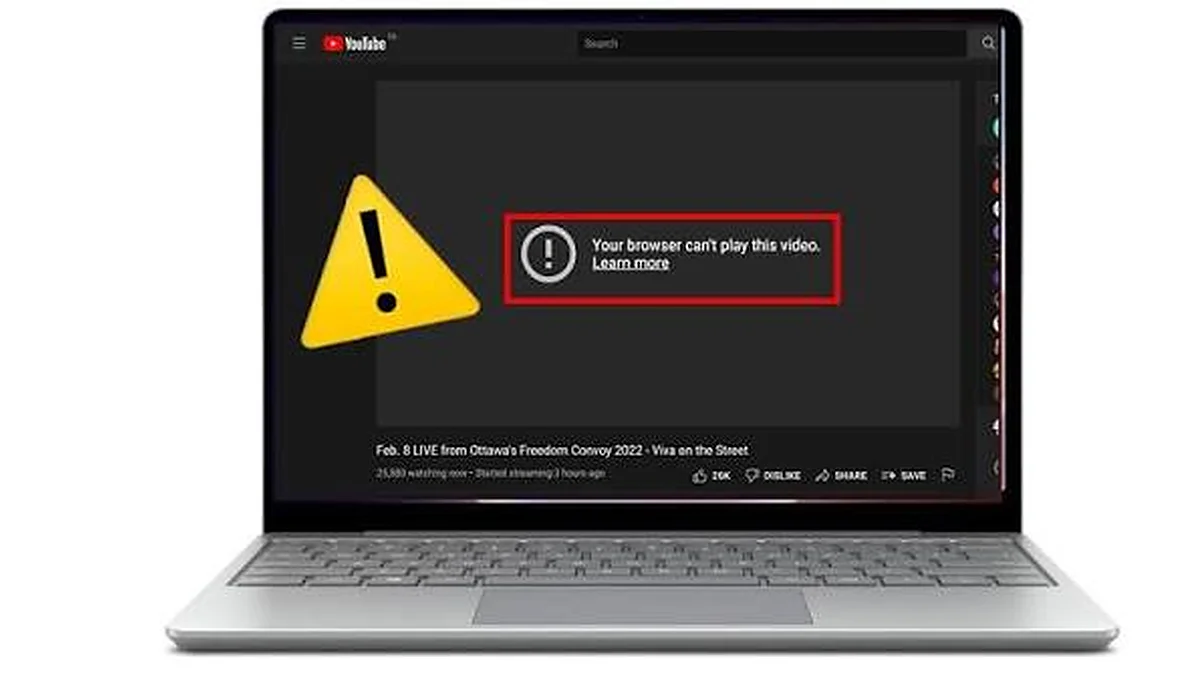
Black screen, no sound or an error? Work through these causes in order.
You choose a video, and nothing happens. Or you see a black screen with sound, or a picture with no sound, or an error message. Video problems in the browser are frustrating, but most have a small number of causes and simple fixes. This guide walks you through them in a logical order.
Start with the error message
The Video Speed Controller tells you what it detected instead of showing a blank player. Each message points to a different cause.
| Message | What it usually means |
|---|---|
| That file is not a video | The file type is not a video, for example a document or image |
| The file is empty | The file has 0 bytes; the download or copy failed |
| Format or codec not supported | The browser cannot decode the video data |
| The file seems damaged | Part of the file is corrupted or missing |
| No picture in this file | Audio can play, but the video codec is unsupported |
| No playable length found | The file has no readable duration |
Understanding containers and codecs
The container
The file extension, such as .mp4, .mov, .mkv or .webm, tells you the container. It is a wrapper that holds the video, audio and other data.
The codecs
Inside the container, the picture and sound are compressed with codecs such as H.264, HEVC, VP9, AV1, AAC or Opus. Browsers decide whether to play a file based on the codecs, not the extension.
Why this matters
Two .mp4 files can behave differently: one with H.264 plays everywhere, one with HEVC may not. Learn more in MP4, WebM and codecs.
Problem 1: Format or codec not supported
Common causes
- HEVC (H.265) video, often from recent phones and cameras.
- Old formats such as AVI, WMV, FLV and some 3GP files.
- Professional codecs such as ProRes or DNxHD.
- Unusual audio codecs such as AC-3 or DTS.
Fixes
- Try a different browser. Support varies between browsers and operating systems.
- Convert the file to MP4 with H.264 video and AAC audio using a desktop converter.
- On phones, change the camera setting to a more compatible format before recording.
Problem 2: Sound plays but the screen is black
Why it happens
The browser can decode the audio track but not the video track. The tool shows "No picture in this file".
Most common cause
HEVC or 10-bit video that your browser or graphics hardware cannot decode.
Fixes
- Try another browser on the same device.
- Update your browser and operating system.
- Convert the video to H.264.
Problem 3: Picture plays but there is no sound
Check the simple things first
- Is the player's mute button on? The icon shows a crossed speaker when muted.
- Is the volume slider turned down?
- Is your device volume up and the right output selected?
- Are headphones or Bluetooth speakers connected to the wrong device?
Check the file
- The audio codec may be unsupported.
- The file may have no audio track at all.
- Screen recordings sometimes record without audio.
Check the speed
Some browsers mute audio at extreme speeds. The tool stays between 0.25× and 4× to avoid this.
Problem 4: The file is damaged or incomplete
Signs of a damaged file
- Playback stops at the same point every time.
- The duration is missing or wrong.
- The tool shows "The file seems damaged".
Causes
- Interrupted downloads.
- Recording stopped by a crash or low battery.
- Copy errors on old USB drives or memory cards.
Fixes
- Download or copy the file again.
- Try the original file on the device that recorded it.
- Use a video repair tool if no other copy exists.
Problem 5: Nothing happens when choosing a file
Possible reasons
- The file picker was closed without selecting a file.
- A browser extension is blocking scripts on the page.
- JavaScript is disabled in the browser.
Fixes
- Choose the file again or drag it onto the drop area.
- Temporarily disable script-blocking extensions for this site.
- Reload the page.
Problem 6: Playback stutters or freezes
Causes
- Very high resolution (4K or higher) on an older device.
- High playback speeds with high-resolution video.
- Many tabs or apps using memory and CPU.
- Files stored on slow network drives or external disks.
Fixes
- Lower the playback speed.
- Close other tabs and programs.
- Copy the file to your device's internal storage.
- Use a lower-resolution version of the video.
Problem 7: Large files are slow to seek
The tool reads the file from your device rather than loading all of it into memory. Very large files may still take a moment to jump to a new position, especially on phones. The tool shows a notice for files larger than 2 GB.
Problem 8: Speed changes do not seem to work
Check the readout
The readout shows the speed the video is actually using. If it says 2.00×, the video is playing at double speed.
Static content
Slides or still images look the same at any speed. Watch the time display; it moves faster at higher speeds.
Keyboard shortcuts
If S and D do nothing, check that Keyboard shortcuts is ticked and that you are not typing in a text box.
Problem 9: Phone-specific issues
iPhone videos
Recent iPhones may record in HEVC. In Settings, Camera, Formats, choose "Most Compatible" to record in H.264 for wider compatibility.
Android videos
Some Android phones also record in HEVC. Look for an H.264 or compatibility option in the camera settings.
Low memory
Close background apps if playback is choppy on older phones.
A quick troubleshooting checklist
- Read the error message in the tool.
- Try a different browser.
- Check mute, volume and device output.
- Get a fresh copy of the file.
- Convert to MP4 (H.264 + AAC).
- Lower the speed and close other tabs.
- Copy the file to internal storage.
Check your browser's format support
The compatibility section on the homepage asks your browser which common formats it reports it can play. "Likely plays", "May play" and "Not reported" come directly from your browser. The real test is always opening the file.
When to get help
If a file plays in other software on the same device but not in any browser, it almost certainly uses a codec browsers do not support. Converting the file is the most reliable solution. You can also contact us with your browser, device and file details; please do not send the video itself.
How to convert a video to a compatible format
What to convert to
For the widest browser support, convert to:
- Container: MP4.
- Video codec: H.264.
- Audio codec: AAC.
Choosing a converter
Use a reputable desktop converter or video editor. Look for an export or "convert" option with an MP4 (H.264) preset.
Keep the original
Always keep the original file until you have checked that the converted copy plays correctly.
Check the result
Open the converted file in the Video Speed Controller. If it plays, the conversion worked.
Browser-specific tips
Keep your browser up to date
Format support improves with new versions. Updating often fixes playback problems.
Hardware acceleration
Browsers use your graphics hardware to decode video. If videos show a black screen in every browser on one computer, updating graphics drivers may help.
Private or restricted modes
Some restricted browser modes or security software can limit media playback. Try a normal window if you see unexpected errors.
Device-specific tips
Windows
Some codecs, such as HEVC, may depend on optional system components and hardware support.
macOS
Safari has strong support for formats recorded by Apple devices, including HEVC on supported Macs.
Linux
Codec support can depend on how the browser was packaged. A browser from the official vendor usually includes common codecs.
Chromebooks
Chromebooks support common web formats such as MP4 (H.264) and WebM.
Understanding error codes
The browser reports media errors with numbered codes. The tool translates them into plain messages.
| Code | Browser meaning | Tool message |
|---|---|---|
| 1 | Playback aborted | Playback interrupted |
| 2 | Network or access error | The browser lost access to the file |
| 3 | Decoding error | The file seems damaged |
| 4 | Source not supported | Format or codec not supported |
Preventing problems in the future
Record in compatible formats
Set your phone or camera to record H.264 MP4 when you need easy browser playback.
Download completely
Wait for downloads to finish before opening files.
Store files safely
Keep important videos on reliable storage and make backups.
Keep software updated
Update your browser, operating system and graphics drivers regularly.
When the problem is the device, not the file
If many different videos fail on one device but play on another, the issue is likely the device: outdated browser, missing codecs, old graphics drivers or limited processing power. Try updating, or use another device for heavy files.
Troubleshooting flow by symptom
| Symptom | First thing to try | If that fails |
|---|---|---|
| Error: not supported | Another browser | Convert to MP4 (H.264 + AAC) |
| Sound, no picture | Another browser | Convert video to H.264 |
| Picture, no sound | Unmute and raise volume | Convert audio to AAC |
| Stops part-way | Fresh copy of the file | Video repair tool |
| Stutters | Lower speed, close tabs | Smaller resolution version |
| Nothing happens | Choose the file again | Reload page, check extensions |
Why some files play in desktop software but not in browsers
Desktop media players often include their own collection of codecs, sometimes covering dozens of formats. Browsers include a smaller, carefully chosen set of codecs that are widely used on the web and that can be decoded securely and efficiently. That is why a file can play in a desktop player yet fail in a browser. Converting it to a web-friendly format solves this.
Information to collect before asking for help
If you still cannot play a file, gather these details before contacting anyone for support:
- Browser name and version.
- Operating system and device.
- File extension and size.
- Video and audio codec, if a media information tool can show them.
- Where the file came from, such as a phone, camera or download.
- The exact message the tool showed.
With this information, most problems can be identified quickly. Please do not send the video file itself.
Key takeaways
- Read the tool's message first; it points to the cause.
- Codecs, not extensions, decide whether a file plays.
- HEVC, AVI, WMV and FLV are the most common problem formats.
- Converting to MP4 (H.264 + AAC) is the most reliable fix.
- Check mute and volume for silent videos.
Frequently asked questions
Why does my MP4 not play?
The MP4 probably uses a codec your browser cannot decode, often HEVC.
Is my file uploaded when I try to play it?
No. Your video is processed in this browser. The video file is not uploaded to our server.
Can the tool convert my video?
No. It plays files your browser supports. Use a desktop converter to change formats.
Why does the same file play in one browser but not another?
Browsers include different codecs and use the operating system and graphics hardware differently.
Can a damaged file harm my computer?
Opening a damaged video in a browser player is generally safe; the browser simply stops decoding it.
Why does my video show the wrong shape?
The tool adapts the player to the video's shape. If it looks stretched, the file may have unusual aspect-ratio settings.
Does the tool work with videos from cloud storage?
Download the file to your device first, then open it. The tool plays local files and does not fetch videos from links.
Why does my converted file still not play?
Check that the converter used H.264 video and AAC audio in an MP4 container, and that the conversion finished without errors.
Can I play a video that is still downloading?
It is better to wait until the download is complete. Incomplete files often stop part-way or fail to load.
Summary
Most browser playback problems come from unsupported codecs, damaged files, muted audio or limited device power. Read the message the tool shows, try another browser, check sound settings, get a fresh copy, and convert to MP4 (H.264 + AAC) when needed. Then load the file in the Video Speed Controller again.
Try it with your own video – nothing is uploaded.
Open the Video Speed Controller