
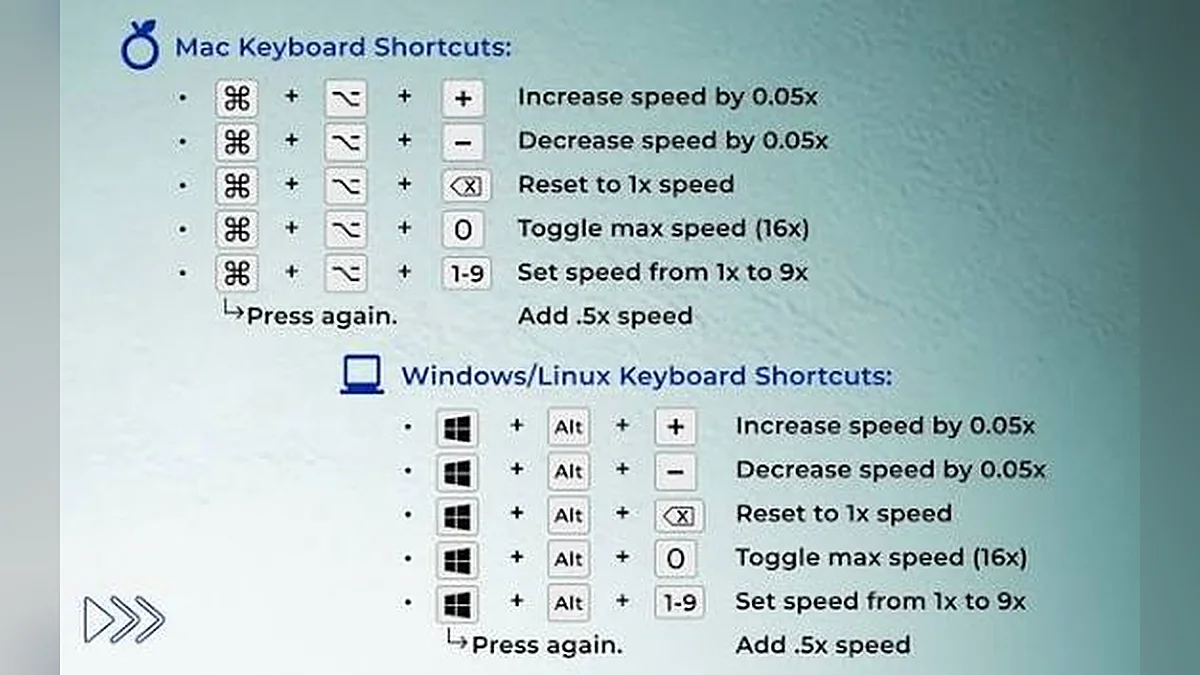
Control speed and playback without touching the mouse. Here is the full list and how shortcuts behave.
If you use the Video Speed Controller regularly, keyboard shortcuts make it much faster. You can change speed, reset to normal, play, pause, skip, mute and go fullscreen without reaching for the mouse. This guide lists every shortcut, explains how they behave, and shows how to switch them off if they clash with other tools.
The complete shortcut list
| Key | Action |
|---|---|
| S | Slower by 0.10× |
| D | Faster by 0.10× |
| R | Reset to 1× (normal speed) |
| K | Play or pause |
| Space | Play or pause |
| J | Back 5 seconds |
| L | Forward 5 seconds |
| ← | Back 5 seconds (when focus is inside the tool) |
| → | Forward 5 seconds (when focus is inside the tool) |
| M | Mute or unmute |
| F | Fullscreen on or off |
Easy to remember
- S for slower, D next to it for faster.
- R for reset.
- J, K, L for back, play and forward, a layout used by many video players.
- M for mute and F for fullscreen.
Speed shortcuts in detail
S – slower
Each press lowers the speed by 0.10×. From 1.00× you go to 0.90×, 0.80× and so on. The minimum is 0.25×.
D – faster
Each press raises the speed by 0.10×. The maximum is 4.00×.
R – reset
Returns instantly to 1.00×, normal speed. This is useful when you have sped up a lecture and want to hear an important section normally.
Speed shortcuts work before you load a video
You can set your preferred speed before choosing a file. When the video loads, it starts at that speed.
Playback shortcuts in detail
K and Space – play and pause
Both keys toggle playback. Space does not trigger play when a button or link is focused, so normal keyboard use of buttons is not affected.
J and L – jump back and forward
Each press moves 5 seconds. They work anywhere on the page.
Arrow keys – jump inside the tool
The left and right arrow keys skip 5 seconds only when your focus is inside the tool area. Elsewhere on the page, arrow keys scroll as normal. When the speed slider or seek bar is focused, arrow keys control that slider instead.
M – mute
Toggles sound on and off. Useful for shadowing practice or quiet environments.
F – fullscreen
Shows the player full screen with the speed badge visible. Press F again or Escape to exit.
Shortcuts will not interfere with typing
Text fields are protected
Shortcuts are ignored while you type in any input, text area or editable area, including the Exact speed box. Typing "d" in a field will never change the speed.
Buttons and links work normally
Space and Enter keep their usual meaning on focused buttons, links and accordion headings.
Modifier keys are ignored
Shortcuts do not run when Ctrl, Cmd or Alt is held, so browser shortcuts such as Ctrl+S or Ctrl+R are not affected.
How to switch shortcuts off
When you might want to
- You use a screen reader that relies on single-letter navigation keys.
- You use another browser extension with the same keys.
- You prefer to use only the mouse or touch.
How
Untick Keyboard shortcuts in the options under the player. The status message confirms "Keyboard shortcuts off". Tick it again to turn them back on.
Everything still works without shortcuts
All controls are standard buttons, sliders and fields. You can reach them with Tab and use them with Enter, Space and the arrow keys.
Precise speed control with the keyboard
The fine speed slider
Press Tab until the fine speed slider is focused. Each arrow key press moves 0.05×. Home and End jump to the minimum and maximum.
The Exact box
Tab to the Exact box, type a value between 0.25 and 4, and press Enter. Values outside the range are limited automatically.
The preset buttons
Tab through the presets and press Enter or Space to select one.
Shortcut workflows
Watching a lecture
- Press D three times to reach 1.30×.
- Press R for an important explanation.
- Press J if you miss a sentence.
- Press K to pause and take notes.
Practising a skill
- Press S five times to reach 0.50×.
- Turn on Loop.
- Use J to repeat a move.
- Press D as you improve.
Reviewing a recording
- Press D repeatedly to reach 2×.
- Use L to skip ahead.
- Press R when you find the part you need.
Shortcuts and accessibility
Screen readers
Speed changes are announced through a polite status message, for example "Speed set to 1.50×".
Visible focus
Every focusable control shows a clear outline when selected with the keyboard.
No hover-only controls
Nothing in the tool depends on hovering with a mouse.
Where these shortcuts work
The shortcuts control the player on this website only. They are not a browser extension and do not affect videos on other websites. For controlling videos across many sites, see online speed tool vs browser extension.
Troubleshooting shortcuts
Nothing happens when I press a key
- Check that Keyboard shortcuts is ticked.
- Click an empty part of the page to move focus out of a text field.
- Make sure a video is loaded for play, seek, mute and fullscreen shortcuts.
Arrow keys scroll the page
That is expected outside the tool. Click inside the tool area or use J and L instead.
F does nothing
Your browser or device may not allow fullscreen for this page. On some phones, use the fullscreen button.
Combining shortcuts with mouse and touch
Use whatever is quickest
Shortcuts are optional. You can mix them with clicking presets, dragging sliders and tapping buttons.
Presets for big jumps, keys for small ones
Click a preset to jump directly to a common speed, then use S and D for small adjustments.
Touch devices with keyboards
Tablets with hardware keyboards can use the shortcuts as well as touch controls.
Building muscle memory
Learn three keys first
Start with K for play and pause, D for faster and R for reset. These cover most needs.
Add the next three
Then add S for slower and J and L for jumping.
Practise with a familiar video
Load a video you know well and practise changing speed and jumping without looking at the keyboard.
Shortcuts and focus explained
What focus means
Focus is the element on the page that receives keyboard input. A focused element shows a visible outline.
How focus affects shortcuts
- Focus in a text field: shortcuts are ignored so you can type.
- Focus on a button or link: Space and Enter activate it as normal.
- Focus on a slider: arrow keys move the slider.
- Focus elsewhere: shortcuts work as listed.
Moving focus away from a field
Press Tab to move to the next control, or click an empty area of the page.
Shortcuts in fullscreen
Shortcuts continue to work in fullscreen mode. Press F or Escape to exit. The speed badge remains visible in the corner of the video so you always know the current speed.
Status messages for every shortcut
When you change speed with a shortcut, the status line below the player confirms it, for example "Speed set to 1.20×". Screen readers announce this message politely without interrupting.
Tips for screen-reader users
Browse mode vs focus mode
Some screen readers use single-letter keys to jump between headings and links in browse mode. If these clash with the tool's shortcuts, untick Keyboard shortcuts.
Use the labelled controls
All buttons have clear labels such as "Play", "Back 5 seconds" and "Faster by 0.10". The speed slider announces its value in words.
Errors are announced
If a file cannot be played, the error panel is announced as an alert.
Common shortcut conflicts
Browser extensions
Some extensions use single-letter keys. If both react to the same key, disable shortcuts in one of them.
Operating system shortcuts
Shortcuts with Ctrl, Cmd or Alt are left to your browser and operating system.
Other tabs
Shortcuts only work in the tab where the tool is open and focused.
Quick reference card
Print or copy this short list and keep it next to your screen until the keys become automatic.
| Need | Press |
|---|---|
| A bit slower | S |
| A bit faster | D |
| Back to normal | R |
| Start or stop | K |
| Missed something | J |
| Skip ahead | L |
| Silence | M |
| Bigger picture | F |
Why the speed step is 0.10
A step of 0.10× is small enough to fine-tune comfortably, yet large enough that a few key presses reach common speeds. From 1.00×, five presses of D reach 1.50×, and ten presses reach 2.00×. For even smaller changes, use the slider, which moves in 0.05 steps.
Keyboard access to every control
| Control | How to reach it |
|---|---|
| Choose a video | Tab to the drop area, then Enter |
| Presets | Tab through the grid, Enter to select |
| Fine slider | Tab to it, arrow keys to adjust |
| Exact box | Tab to it, type, Enter |
| Reset | Tab to it, Enter |
| Options | Tab to each checkbox, Space to toggle |
Shortcuts compared with on-screen buttons
| Action | Shortcut | On-screen control |
|---|---|---|
| Slower | S | − button next to the fine slider |
| Faster | D | + button next to the fine slider |
| Normal speed | R | Reset to 1× button |
| Play / pause | K | Large round play button |
| Back / forward | J / L | Back 5 s and forward 5 s buttons |
| Mute | M | Speaker button |
| Fullscreen | F | Fullscreen button |
Every shortcut has an on-screen equivalent, so nothing is lost if you prefer not to use the keyboard.
Designing your own workflow
For lectures
D to your study speed, R for key points, J to re-hear, K to pause for notes.
For language practice
S to 0.75×, turn on Loop, J to repeat, M to shadow without the original voice.
For sports review
S to 0.5×, Loop on, K to pause on positions, F for a larger view.
For scanning recordings
D repeatedly to reach high speed, L to skip ahead, R when you find the right moment.
Key takeaways
- S and D change speed by 0.10×; R resets to 1×.
- K, J and L control play and jumps; M mutes; F fullscreen.
- Shortcuts never interfere with typing.
- You can switch shortcuts off at any time.
Frequently asked questions
Can I change the shortcut keys?
Not at the moment. The keys were chosen to be easy to remember and to avoid common browser shortcuts.
Can I change the step size?
Shortcuts change speed by 0.10×. For other steps, use the slider (0.05×) or the Exact box.
Do shortcuts work on phones?
Only with a connected hardware keyboard. On touch screens, use the buttons.
Do shortcuts work before a video is loaded?
The speed keys S, D and R work at any time, so you can set your speed in advance. Playback keys work once a video is loaded.
Will shortcuts stay off after I reload the page?
The shortcut setting is not saved. It turns back on when you reload.
Why does Space not play the video when a button is focused?
Space activates the focused button instead, which is standard keyboard behaviour.
Do the shortcuts work with the number pad?
The shortcuts use letter keys and arrow keys. Number keys are not used, so you can type speeds freely in the Exact box.
Are shortcuts case-sensitive?
No. Lower-case and upper-case letters both work, as long as no modifier key such as Ctrl, Cmd or Alt is held.
Can I see the shortcuts inside the tool?
Yes. Open the Keyboard shortcuts panel below the player for a short list.
Summary
Keyboard shortcuts make the Video Speed Controller quick to use: S and D for speed, R to reset, J, K and L for playback, M for mute and F for fullscreen. They never interfere with typing, and you can switch them off at any time.
Try it with your own video – nothing is uploaded.
Open the Video Speed Controller